
 Varazdat S.
 Janis Tirtey
The Short Answer
Three things to get right
To create a proper human with AI, get three things right: believable anatomy, a distinctive face, and an identity that holds across every image. Most failed results break the first one, usually in the hands, or the third, when the face drifts between photos.
The steps below cover why it goes wrong and how to fix it. For the wider process, see how to make an AI person.
Why AI Humans Look Wrong
Hands are the usual giveaway
Image generators are good at faces and weaker at hands. Two explanations come up in the sources read for this page (23 October 2026):
- Training data. PetaPixel reports that in the datasets used to train image generators, hands are often smaller or less visible than faces.
- No 3D model of a hand. Science Focus quotes computer scientist Peter Bentley arguing that these are 2D image generators with no concept of three-dimensional geometry.
The result is an image that looks right overall but has a hand with the wrong number of fingers or a limb that bends oddly. Tools improve over time, so check each image rather than assuming it is fine.
How to Fix It, Step by Step
Simple choices that avoid most errors
- Keep the first image simple. A portrait or half-body shot with hands out of frame or resting naturally gives the model less to get wrong.
- Generate several versions and pick the best. Do not fix a bad image if a clean one is a click away.
- Avoid complex hand poses early. Holding objects, interlaced fingers and crossed arms are the hardest cases.
- Check proportions. Look at the neck, shoulders, arm length and where the limbs join the body before you accept an image.
- Add realism last. Once anatomy is right, work on skin texture and lighting; see how to make AI-generated people look more realistic.
Keeping the Same Human Across Images
A proper human is also a consistent one
A character that looks right in one photo but different in the next is not a usable human. Fix the face first, then change one thing at a time: outfit, then scene, then pose. Changing everything at once is what makes a character drift. The full workflow is in how to keep an AI character consistent across photos, and a styled example is in how to create an AI woman.
The Sequence in the RYLA Builder
The actual steps, in order
On RYLA you design a new character once, and every later image starts from that character. This is the actual sequence in the builder:
- Pick a niche, then gender and style.
- Set the look: ethnicity, age, skin, eyes, face shape, and hair.
- Choose outfit and scene, then personality and a name, then a voice.
- Generate base images and pick the one that becomes your character.
- RYLA generates a reference sheet of that face.
- Finalize, then create new photos in Studio.
Here is one RYLA character from the showcase on this site, generated in two different scenes:
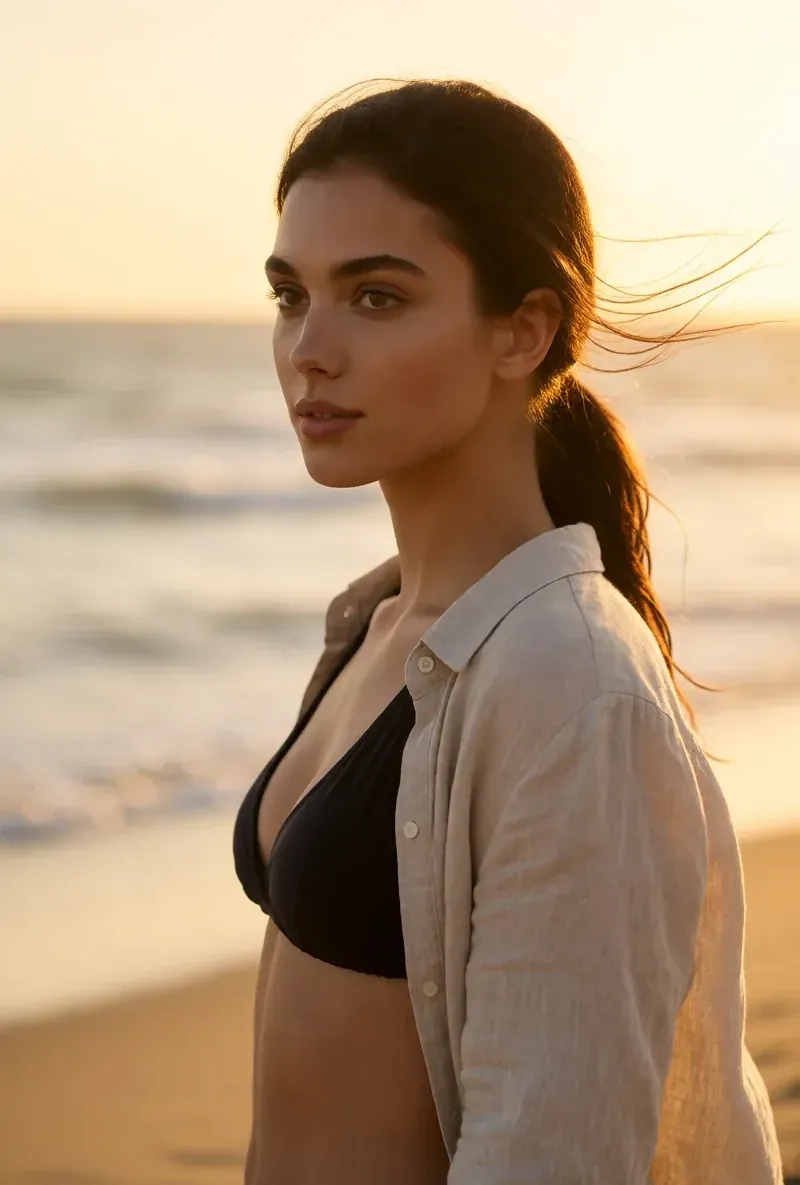
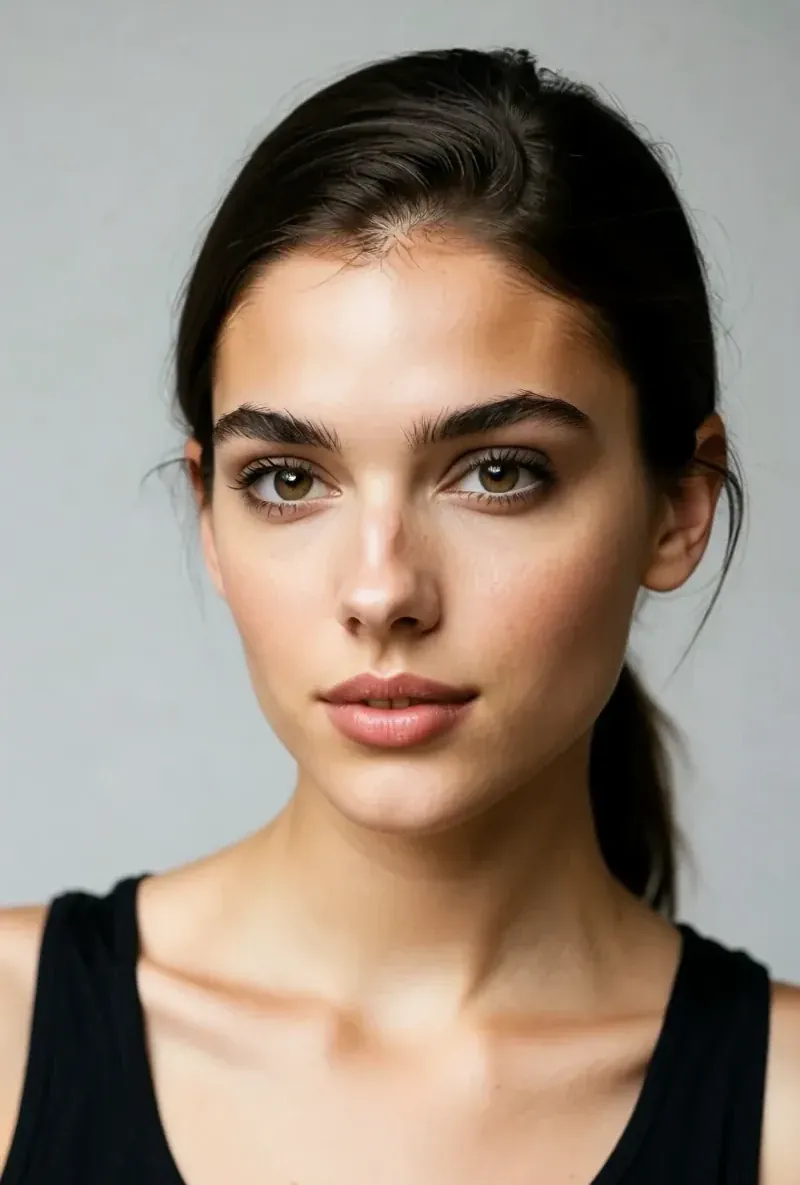
Start with the AI girl generator or see the AI woman generator. Plans and credits are on the pricing page.
Design One Character, Then Generate It Everywhere
Build an AI character with a locked face in the RYLA builder and create its photos in one workspace.
Start Free TrialSources
All sources retrieved 2026-10-23
- Why AI Image Generators Can't Get Hands Right, PetaPixel (read on 23 October 2026)
- Why AI-generated hands are the stuff of nightmares, Science Focus (read on 23 October 2026)