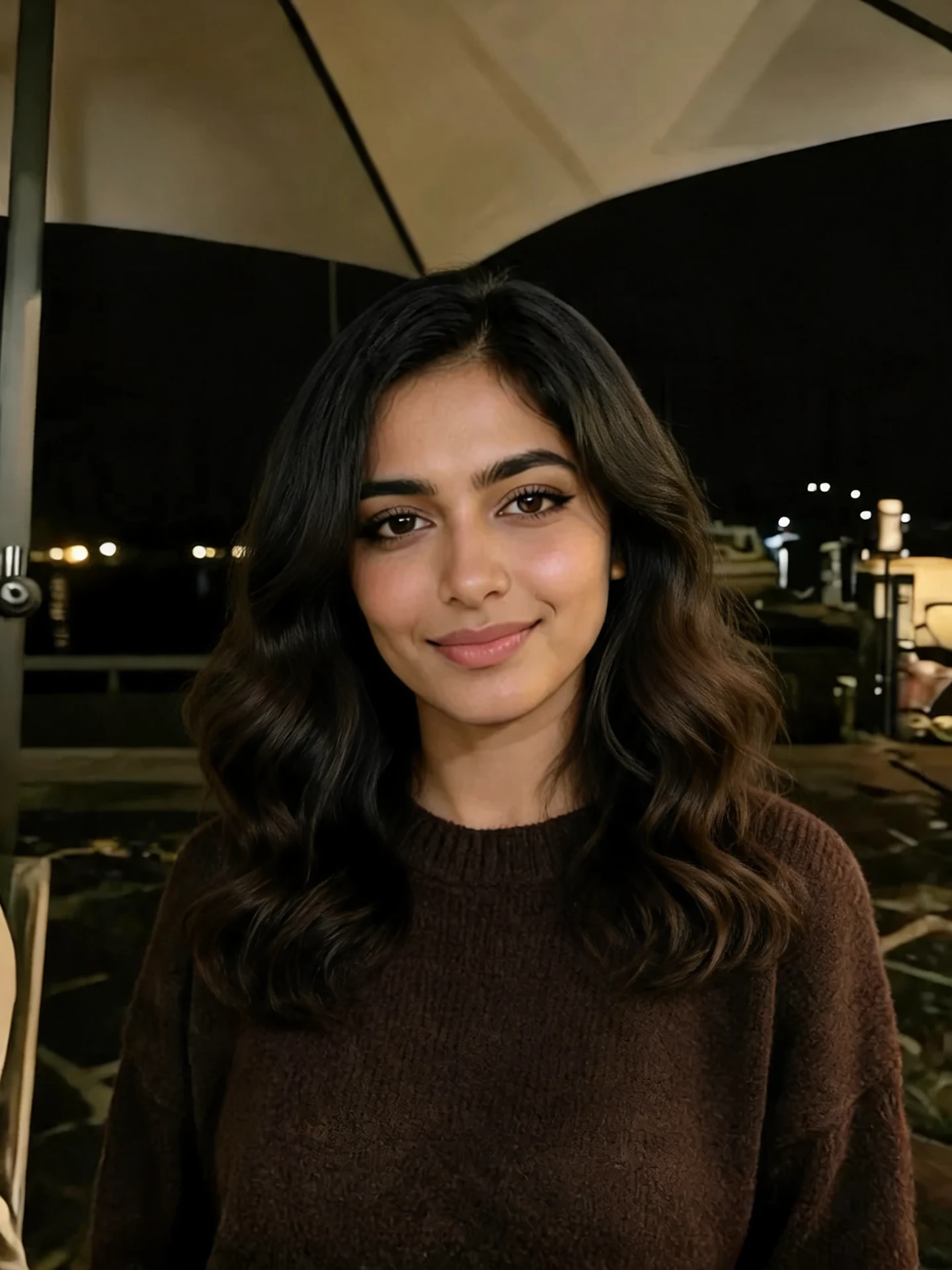
Color is a direction. The face is the reference.
Try one shade at a time. Check it against the skin tone and the light in the scene, rather than changing the whole portrait at once.
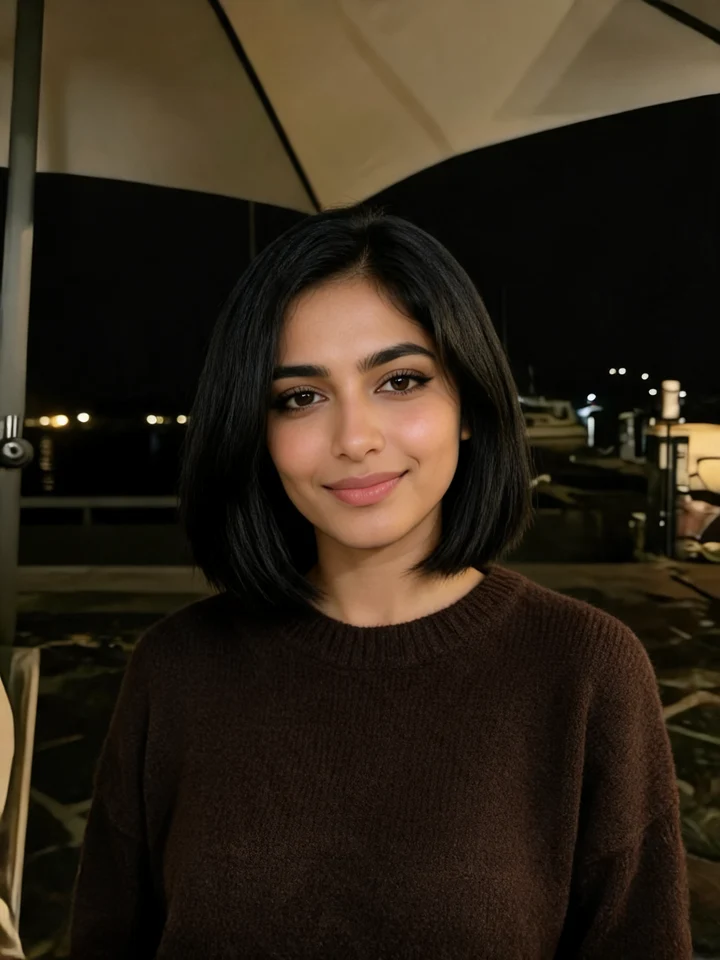 Dark brown
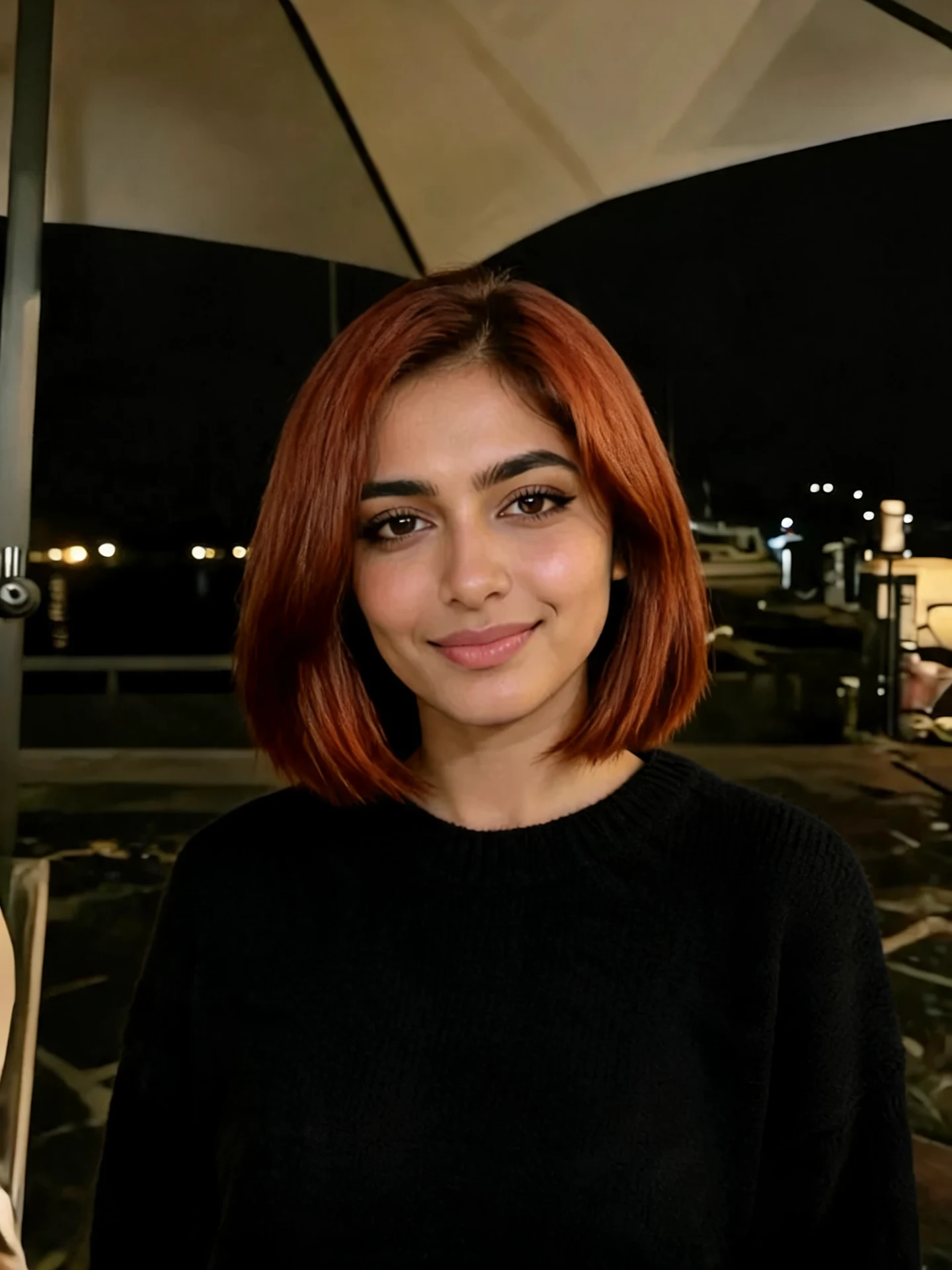 Copper auburn
Prepared AI editing example using the same fictional character. Results vary by image and settings.
Make the direction your own.
01A natural shade
Describe the color and undertone: warm copper, cool brown or soft golden blonde.
02Keep the haircut
Include the current length and shape in your direction when only the color should change.
03Check the light
Highlights and shadows change how a shade reads. Review the result at full size.
From your character to your next image.
Open Studio- 1
Select the character image
Open a saved portrait in Studio and choose Edit.
- 2
Pick a color direction
Start with the supplied copper direction or write the exact shade you want.
- 3
Compare and keep
Check skin tone, hair edges and face details before downloading.
Your questions, answered.
Open a saved portrait in Studio, choose Edit and describe the shade. You can prepare that direction on this page before signing in.
No. This is creative image editing for character imagery, not a guarantee of how a real dye or salon treatment will look.
Ask to keep the cut, length and texture. Review the result carefully because AI editing is not a pixel-exact color replacement.
You can describe those directions in Studio. The displayed copper image is a prepared example, not a promise that every color will work equally well.
No. Your direction is passed to Studio, where you choose an image, review the settings and decide whether to generate.
Use the Hairstyle Changer for cut and texture directions. Changing one thing at a time makes the result easier to assess.