Skip to content
From Basic

AI Image to Video Generator: Turn Any Photo Into a Clip

Animate a still image of your AI character. Describe the movement, choose Fast or Max, and post the clip to TikTok, Instagram or YouTube. Video is part of the Basic plan and above.

HOW IT WORKS

Create in a Few Simple Steps

Upload Your Image

Upload a photo of your AI character or a reference image with a clearly visible face.

Describe the Motion

Write a short motion prompt, for example a head turn, a smile or a slow step toward the camera.

Pick Fast or Max

Fast is the quicker standard tier with clips of about 4 seconds. Max moves more smoothly, takes longer and gives clips of about 6 seconds.

Download & Post

Download the clip and post it yourself. Check hands, teeth and text for distortion before you publish.

REAL OUTPUT

One Character, Four Scenes Ready for Video

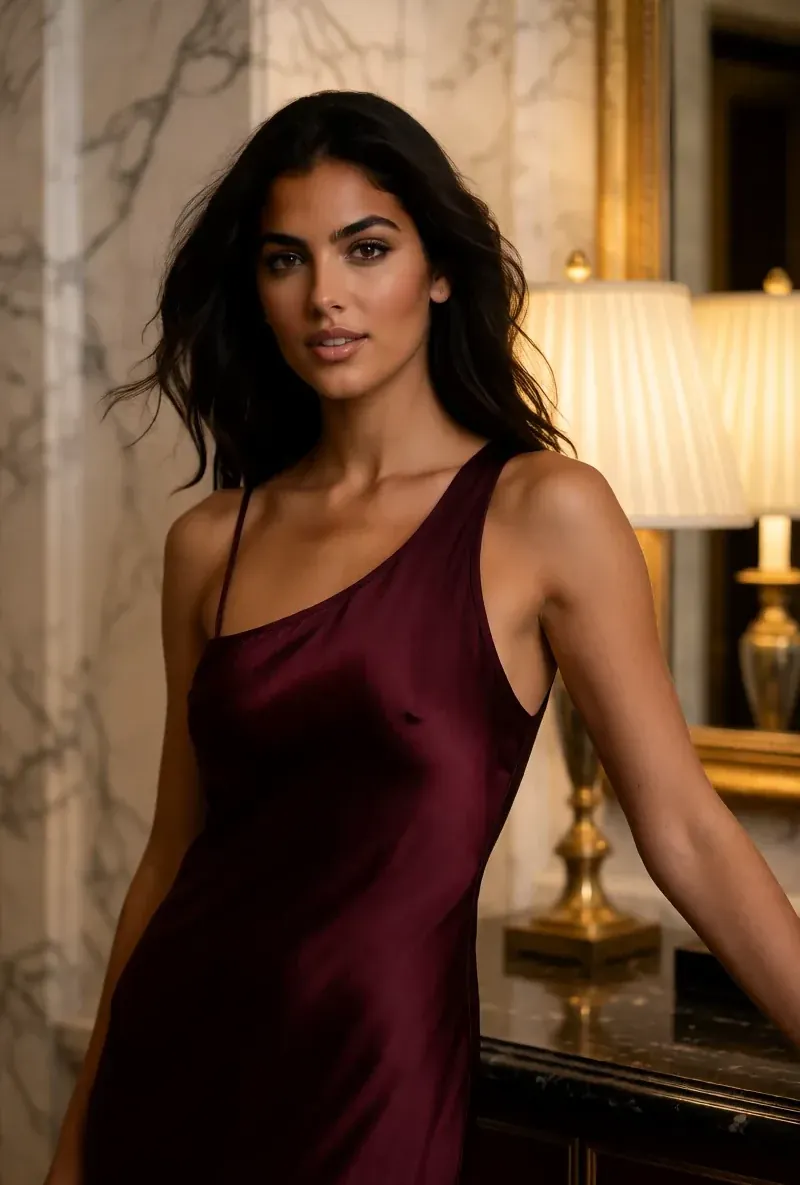
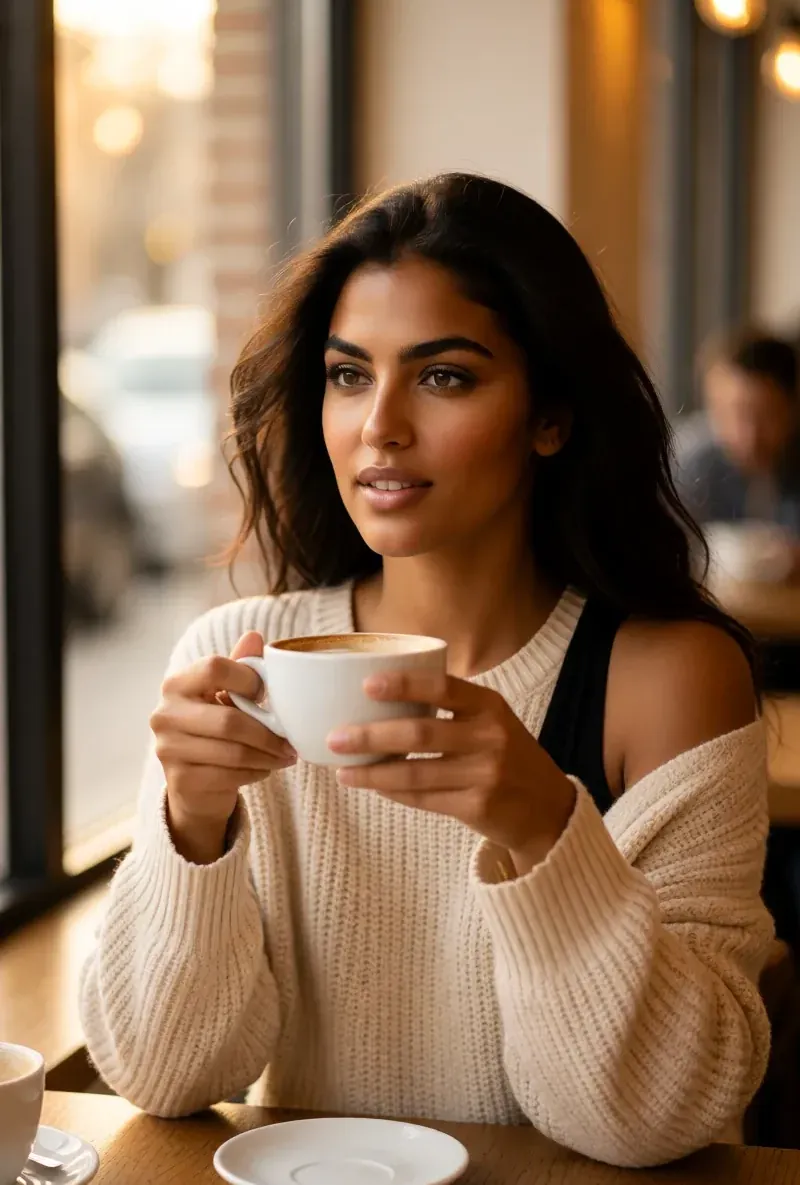
Every image here was generated with RYLA. One character, four different scenes, nothing retouched in between.
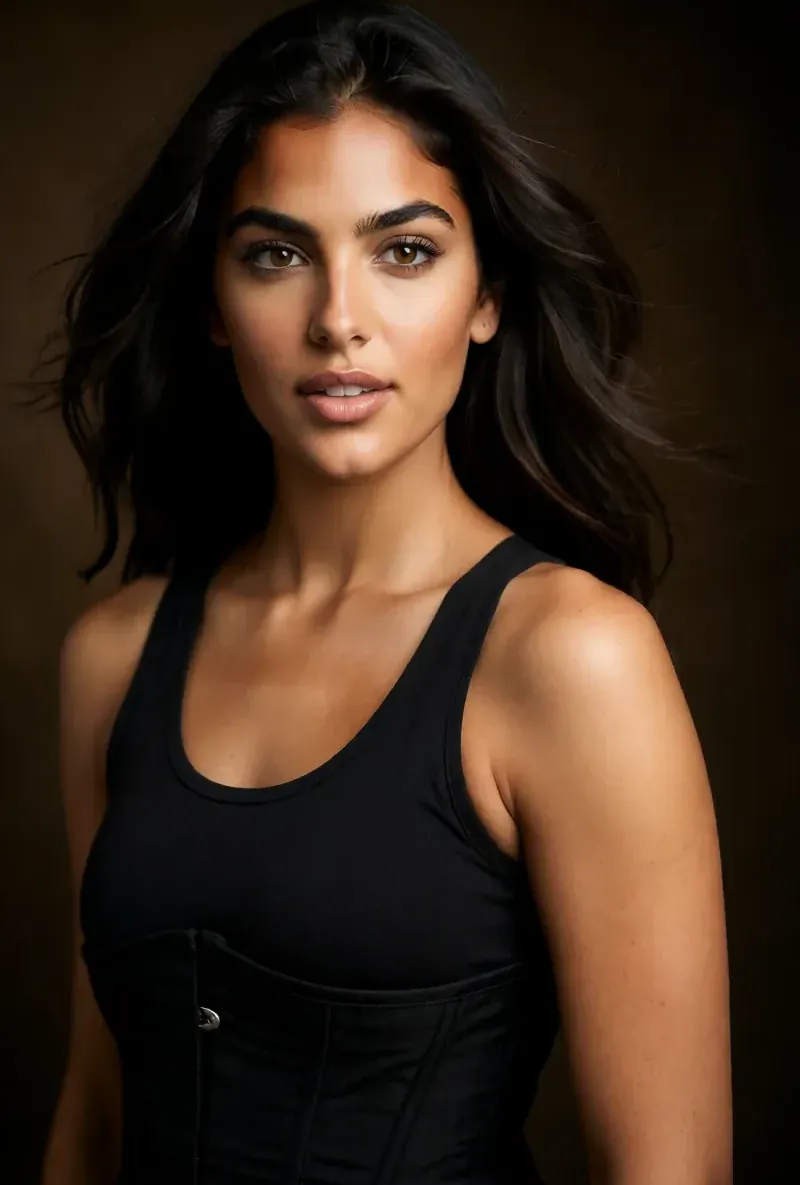
Latina AI creator, an editorial studio portrait, generated with RYLA
an editorial studio portrait
Latina AI creator, on a rooftop above the skyline, generated with RYLA
on a rooftop above the skyline
Latina AI creator, in a luxury interior in evening wear, generated with RYLA
in a luxury interior in evening wear
Latina AI creator, in a cafe with a coffee, generated with RYLA
in a cafe with a coffee
WHY RYLA

Built for Consistent, Studio-Quality Results

Movement From One Image

Describe a head turn, a smile or a walk, and the model animates it from your still image.

Two Quality Tiers

Fast for quick iterations, Max for smoother movement. You choose the tier before each generation.

Same Face, Checked by You

The model follows the face and figure of your source image. Small details can drift, so review each clip before you post it.

USE CASES

Works for Everyone

Short-Form Video

Turn one still of your AI character into short clips for TikTok, Reels and Shorts.

Content From Your Library

Animate selected images from your character library instead of filming new footage.

Trend Adaptation

Adapt a trending motion to your character by rewriting the motion prompt and generating again.

FAQ

Common Questions

AI image to video turns a still photo into a short moving clip. RYLA takes the image of your AI character and generates movement from it, based on the motion prompt you write.

Fast clips run about 4 seconds, Max clips about 6 seconds. For longer content, generate several clips and combine them in your editing app.

Image to video is included from the Basic plan. The Free plan includes starter credits for images, but not for video.

Video is not free; it starts with the Basic plan. To try the product for free, use the starter credits on image generation first.

Simple, clearly described motions work best, such as a head turn, a slow smile or a step forward. Very fast or complex movement is more likely to show artifacts.

Yes. Use a sharp, well-lit photo with one clearly visible face. Blurry or heavily cropped images give weaker results.

The model follows the face and figure of your source image, but this is not a guarantee. Details such as hands, teeth or accessories can change, so review every clip before you post it.

Max costs more credits than Fast. Test a motion with Fast first, then generate the Max version only for the clip you want to publish.

AI Image to Video Generator: Turn Any Photo Into a Clip

Animate a still image of your AI character. Describe the movement, choose Fast or Max, and post the clip to TikTok, Instagram or YouTube. Video is part of the Basic plan and above.

Create Your First Video