AI Talking Photo: Make a Still Image Speak
Turn one image of your AI character into a talking photo with Avatar Video. Add a recording, let RYLA match the mouth to the voice and get a short clip that speaks to the camera.
Avatar Video is Pro only and uses credits. Mouth movement is generated and can be imperfect. Use AI characters you created, or your own face only with your own consent, never someone else.
- 2inputs you need: one portrait image and a voice recording
- 4steps from image to talking clip
- 5 or 10 sclip length you choose, with audio up to 15 seconds
- ProAvatar Video is Pro only and uses credits
A Talking Clip in Motion
This short clip shows an AI character speaking to the camera, generated with Avatar Video. Turn the sound on to judge how the mouth follows the voice.
How to Make a Photo Talk in Four Steps
Start With One Clear Image
Pick a portrait of your AI character where the face is large, well lit and turned towards the camera. A calm mouth that is not wide open gives the animation the most to work with.
Add a Voice
Upload a recording (MP3, WAV or M4A). Keep it clean, with no music underneath. Audio can be up to 15 seconds.
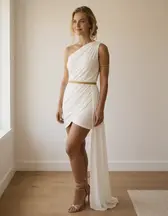
Generate the Talking Clip
Open Avatar Video, pick your portrait, add the voice, choose a 5 or 10 second clip and start. RYLA generates a clip in which the character speaks.
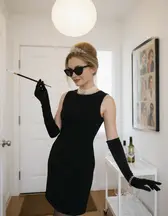
Check, Trim and Try Again
Watch the mouth against the sound. If it looks off, try a sharper image or cleaner audio and generate again. Every try is a new generation and uses credits.
Portraits That Make Good Starting Images
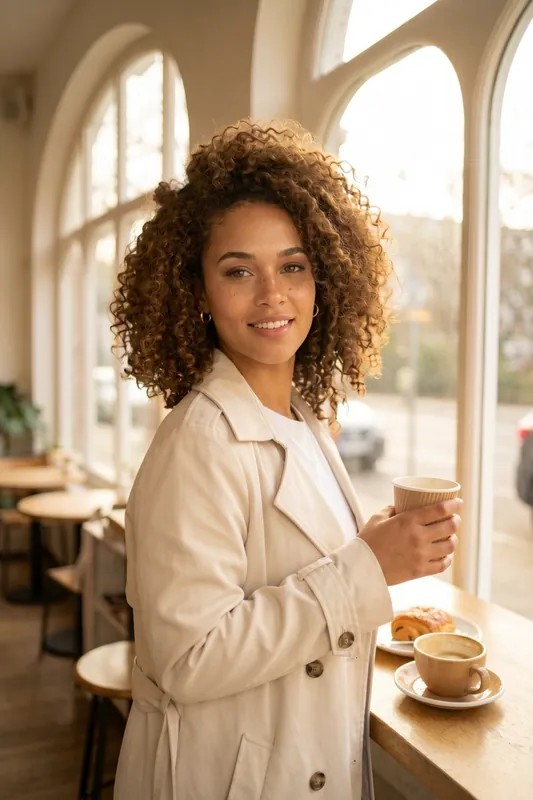
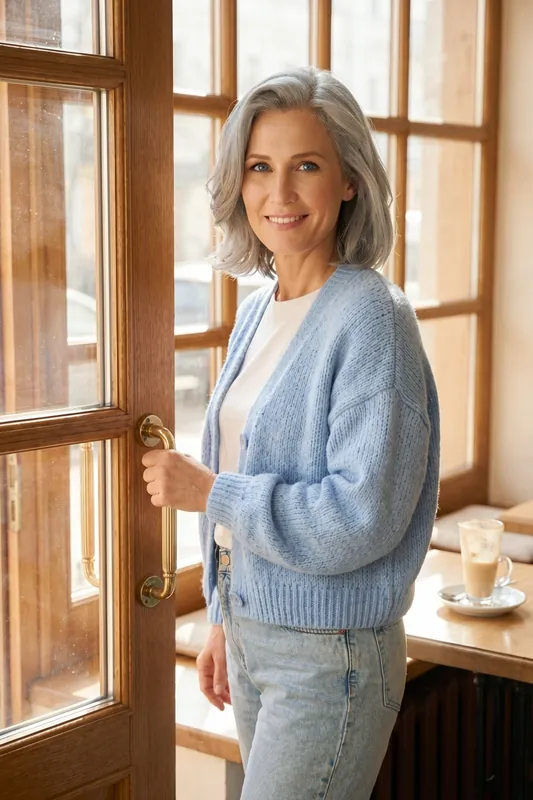
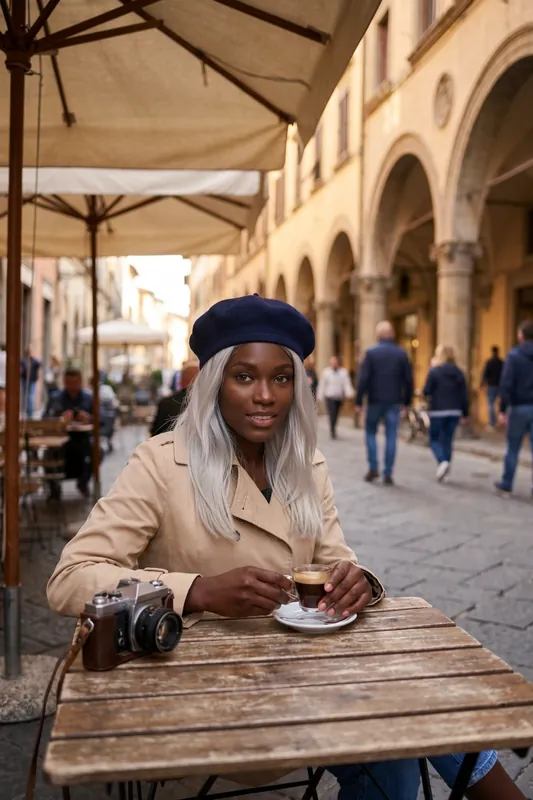
Six AI characters made with RYLA. Faces that are large, evenly lit and turned towards the camera give a talking photo the best chance. These are starting images, not talking clips.
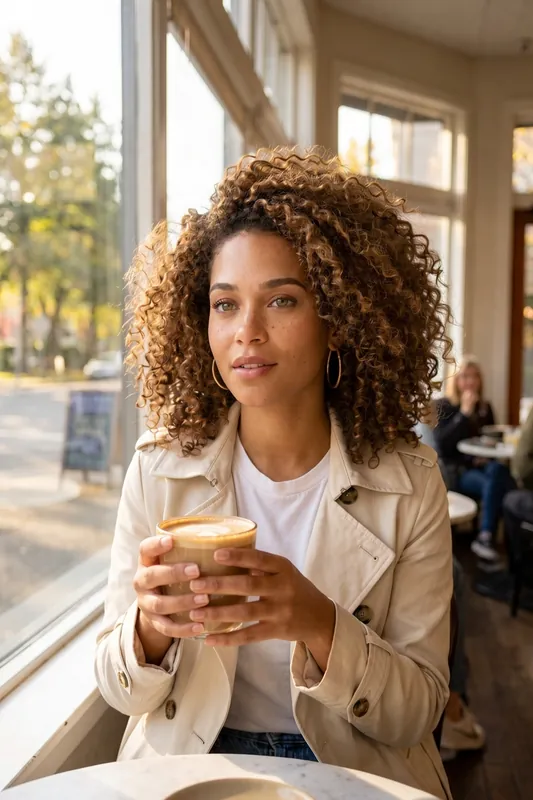
Seated at a window, face easy to read 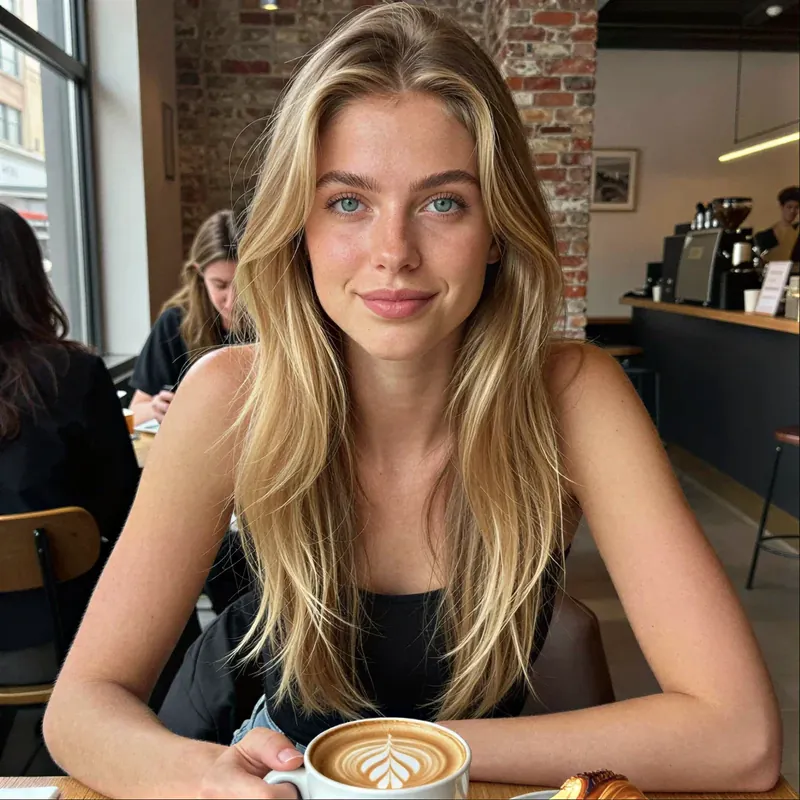
Square, friendly, good light 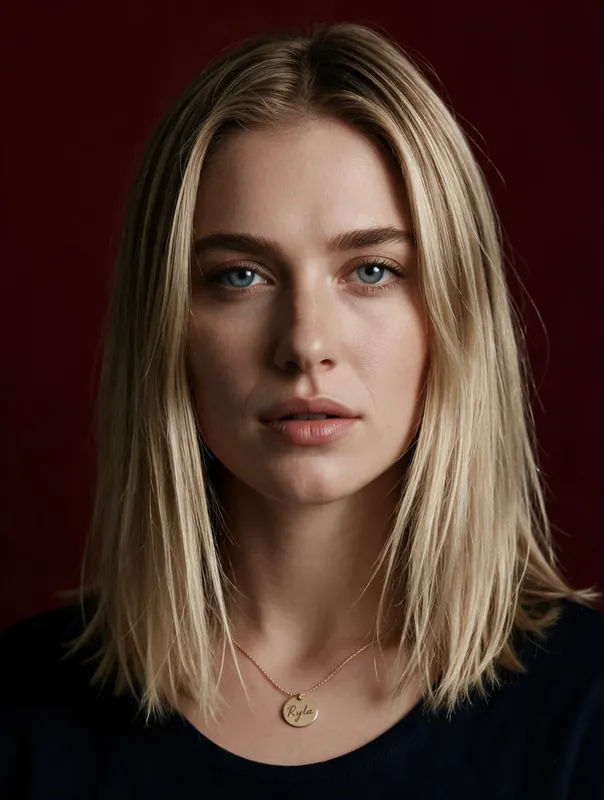
Plain backdrop, front facing 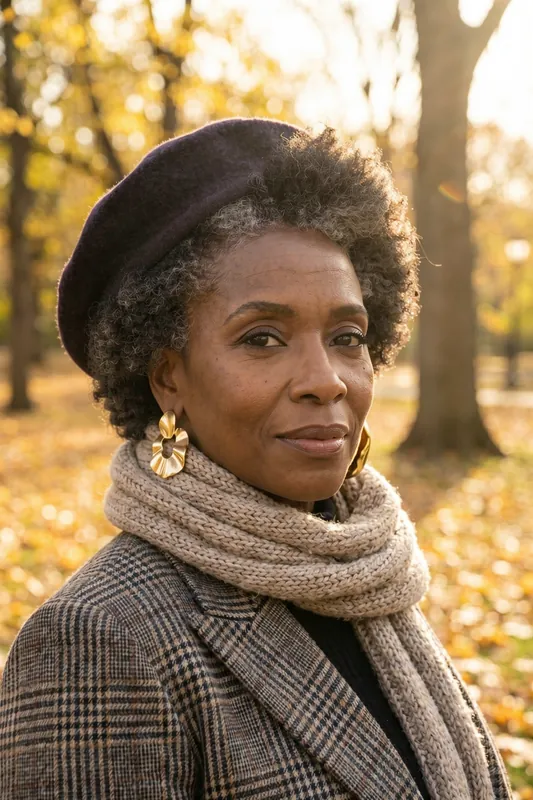
A calm portrait with a clear face 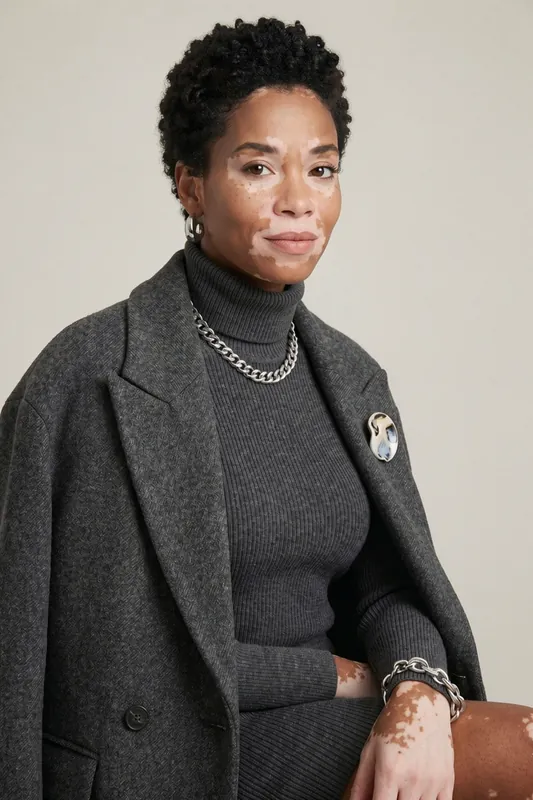
Close crop for a presenter feel 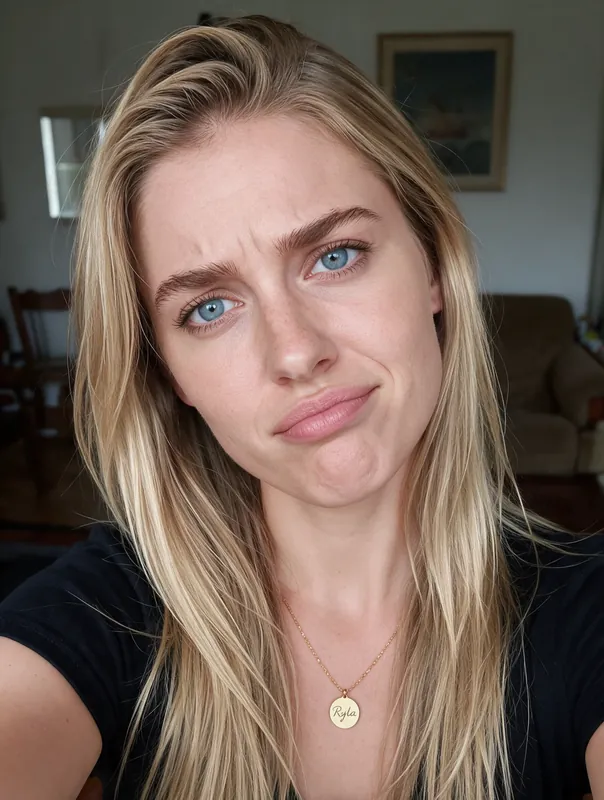
Selfie style, a strong expression to avoid
Make Photo Talk With AI: What an AI Talking Photo Is
An AI talking photo takes a still image and makes the face speak. The model reads an audio track, works out which mouth shapes belong to which sounds and animates the face so that it appears to say the words. You end up with a short clip instead of a picture.
There are two quite different things behind the search term. One is a talking photo of a person, often a relative or a friend, made for fun. The other is a speaking clip of a character you designed. RYLA is built for the second kind. It works with fictional AI characters that you create, and it is not a tool to put words into the mouth of a real person who has not agreed to it.
What You Need: An Image and a Voice
Avatar Video takes a portrait image and a voice and produces a talking clip. The voice comes as an uploaded recording (MP3, WAV or M4A). RYLA does not clone voices, so a recording must be audio you have the right to use, and you should never imitate another person without their consent.
The image comes from your character. If you do not have one yet, create it first in the AI influencer generator, or make a fresh portrait with the AI photo generator. Clips are 5 or 10 seconds long and the audio can be up to 15 seconds, so pick a length that fits your line. Avatar Video is Pro only and every clip uses credits: Standard quality costs 80 credits per second and the higher-quality mode 150, charged for the clip length you choose. See the plans and pricing for what each plan includes.
Tips for a Believable Talking Photo
Most weak results come from the input, not from the tool. These habits help:
- Choose a front-facing face. A face turned away, covered by a hand or cut by the frame has less for the model to move.
- Avoid wide-open or very shut mouths. A relaxed, slightly closed mouth leaves room for natural movement.
- Use even light. Hard shadows over the mouth make the motion look smeared.
- Keep the voice clean. One voice, no music, no echo. Noise is hard to match with lips.
- Speak at a calm pace. Fast speech with many short sounds is harder to match than a steady voice.
- Keep it short. Ten to fifteen words fits a 5 second clip, which keeps a test small. Chain several clips for a longer message.
- Judge the first result as a draft. Change one thing, the image or the audio, and generate again.
The example lines below are written for short clips. Record one yourself and upload it.
Honest Limits of a Talking Photo
The mouth movement is generated, not filmed. It follows the sound, but it can look slightly off, especially on fast speech, rare sounds or an image where the mouth is hard to see. Head and body movement is small. Treat a talking photo as a short, expressive clip, not as a replacement for a filmed presenter.
RYLA creates images and clips of fictional adult AI characters. Avatar Video is Pro only. Do not use photos of other people without their consent, and do not use a talking photo to imitate someone, mislead viewers or make a real person appear to say things they did not say. Nothing involving minors is ever created. If you publish a talking clip, a note that it is AI-generated is good practice.
Short Lines to Record for Your First Talking Photo
Each line is about ten to fifteen words, which keeps the test clip short. Record it, then add the recording to your image.
- Welcome
Hi, I am glad you are here. Stay a minute and have a look around.
- Channel intro
Welcome to my channel. Every week I share one small idea you can try today.
- Daily tip
Here is today's tip: drink a glass of water before your first coffee.
- Announcement
Big news this Friday. Something new is coming, and I cannot wait to show you.
- Story line
The old cafe by the river was closed for years, and then one morning the door opened.
- Sign-off
Thanks for watching. See you next time, and take care of yourself.
What an AI Talking Photo Does Well and Where It Struggles
One Image Is Enough to Start
You do not need a video of your character. A single portrait image plus a voice is the input, so a still from your feed can become a speaking clip.
Lip Movement Follows Your Audio
The mouth is animated to match the voice you add. The movement is generated, so some syllables look softer than others and fast speech is harder than calm speech.
Your Character Stays Recognizable
The clip starts from the face you chose, so the speaking version still looks like the same character. Small changes in expression are normal.
Short Clips, Not Long Videos
Clips are 5 or 10 seconds and the audio can be up to 15 seconds. That suits an intro, a greeting or one message. For a longer story, build several short clips.
Pro Only, Credit-Based
Avatar Video is part of the Pro plan; Basic does not include it. Standard quality uses 80 credits per second and the higher-quality mode 150, charged for the 5 or 10 second clip you choose.
Part of the Same Account
Create the character, make the image and animate it in Avatar Video in one place. The same face can then appear in photos, short videos and talking clips.
Where a Talking Photo Helps
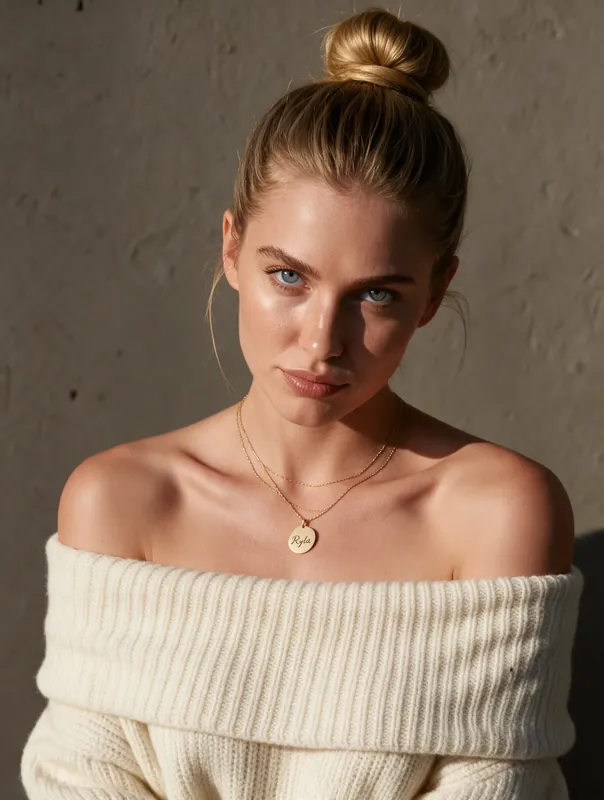
Greetings and Intros
Let your AI character welcome new followers or introduce a channel in a few spoken seconds.
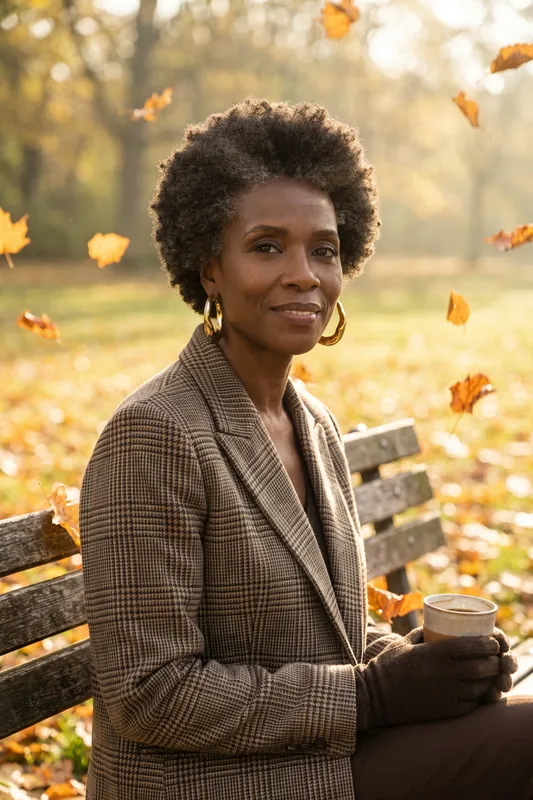
Short Social Clips
Turn a favourite portrait into a vertical clip with a hook line, a tip or a caption read aloud.
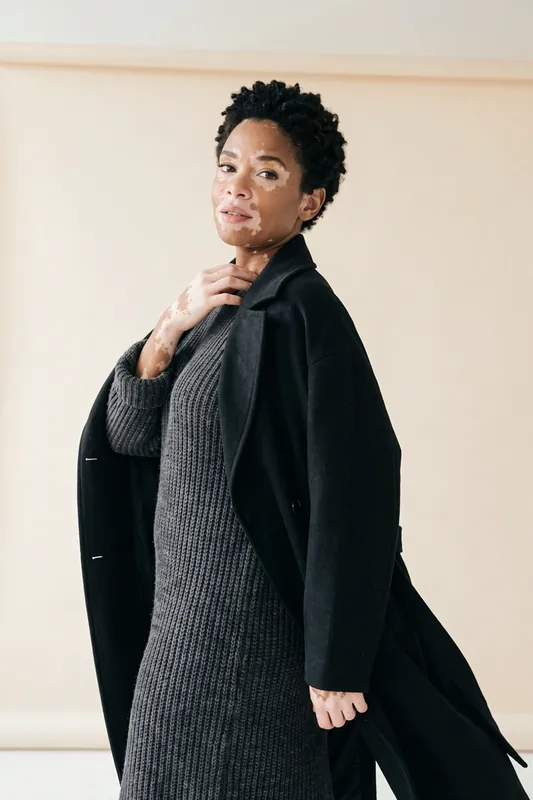
Characters and Storytelling
Give a story, game or fan project a face that speaks lines from your own recording.
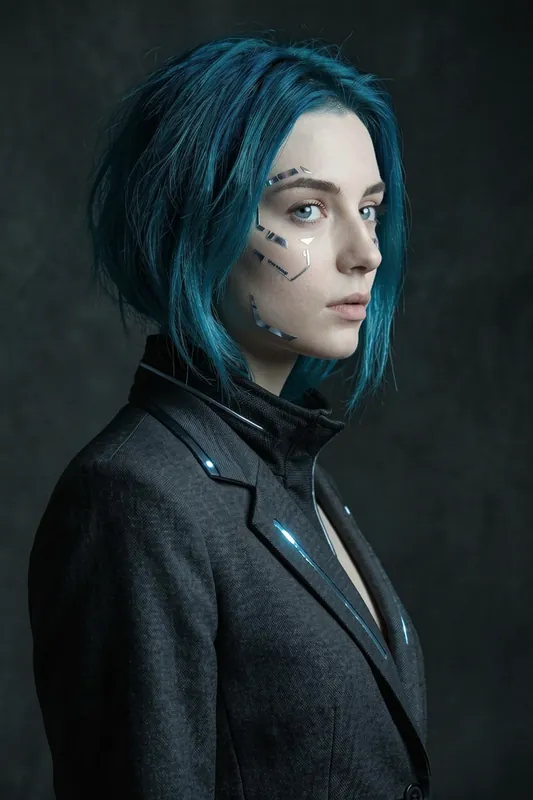
Product and Explainer Hosts
Use a fictional presenter to read a short explanation or announcement for a small brand.