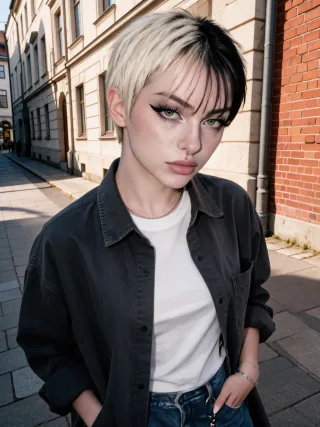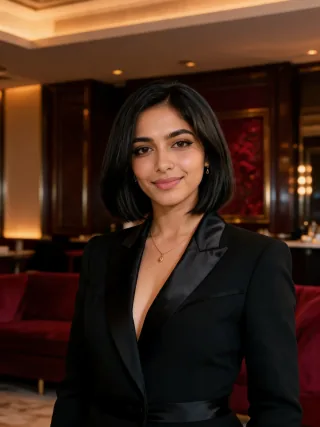
AI image upscaler.Give the details room.
Take a saved Studio image to the finishing stage. Upscale it, inspect the fine details and export the version you want to use.
Last updated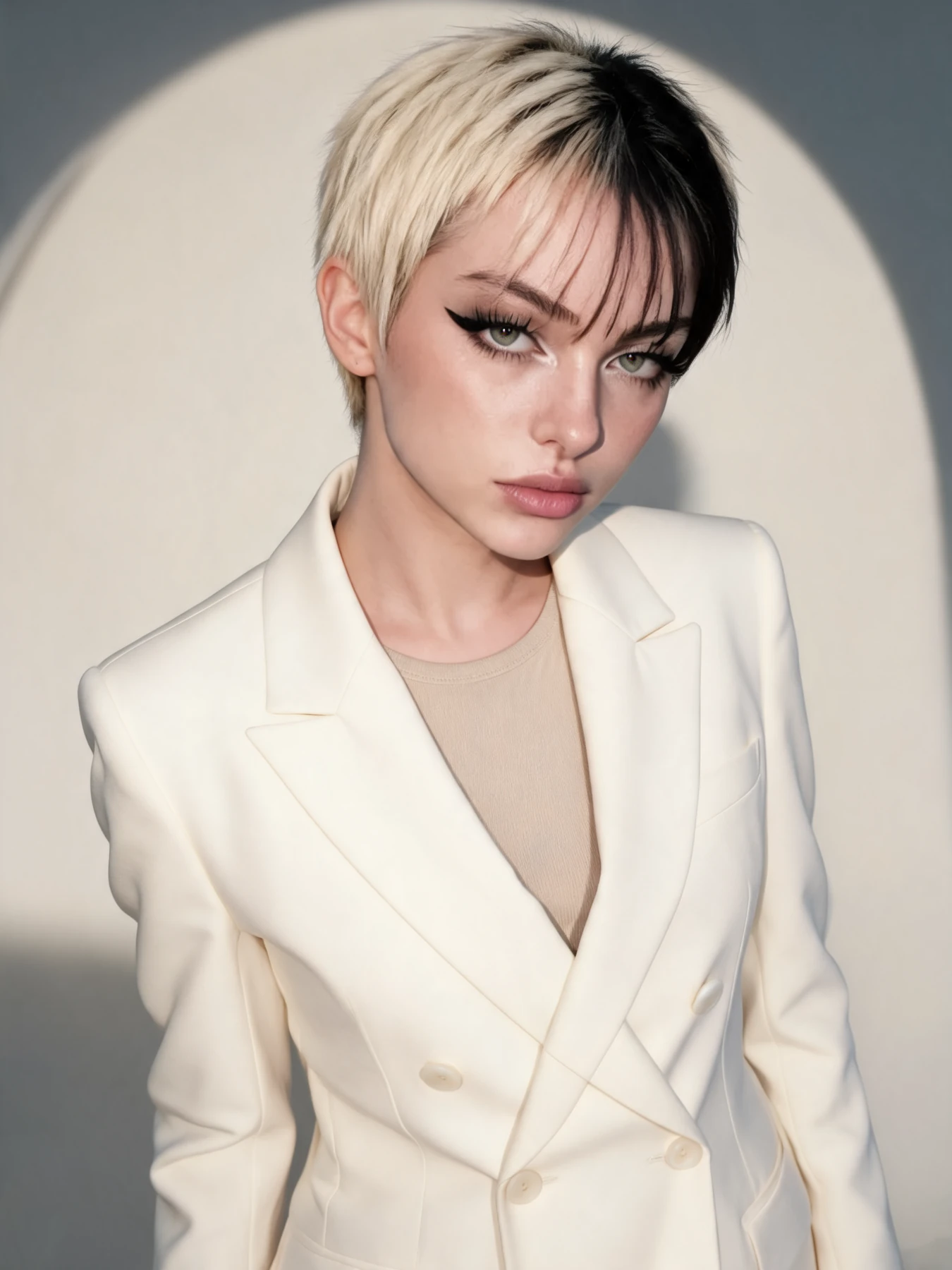
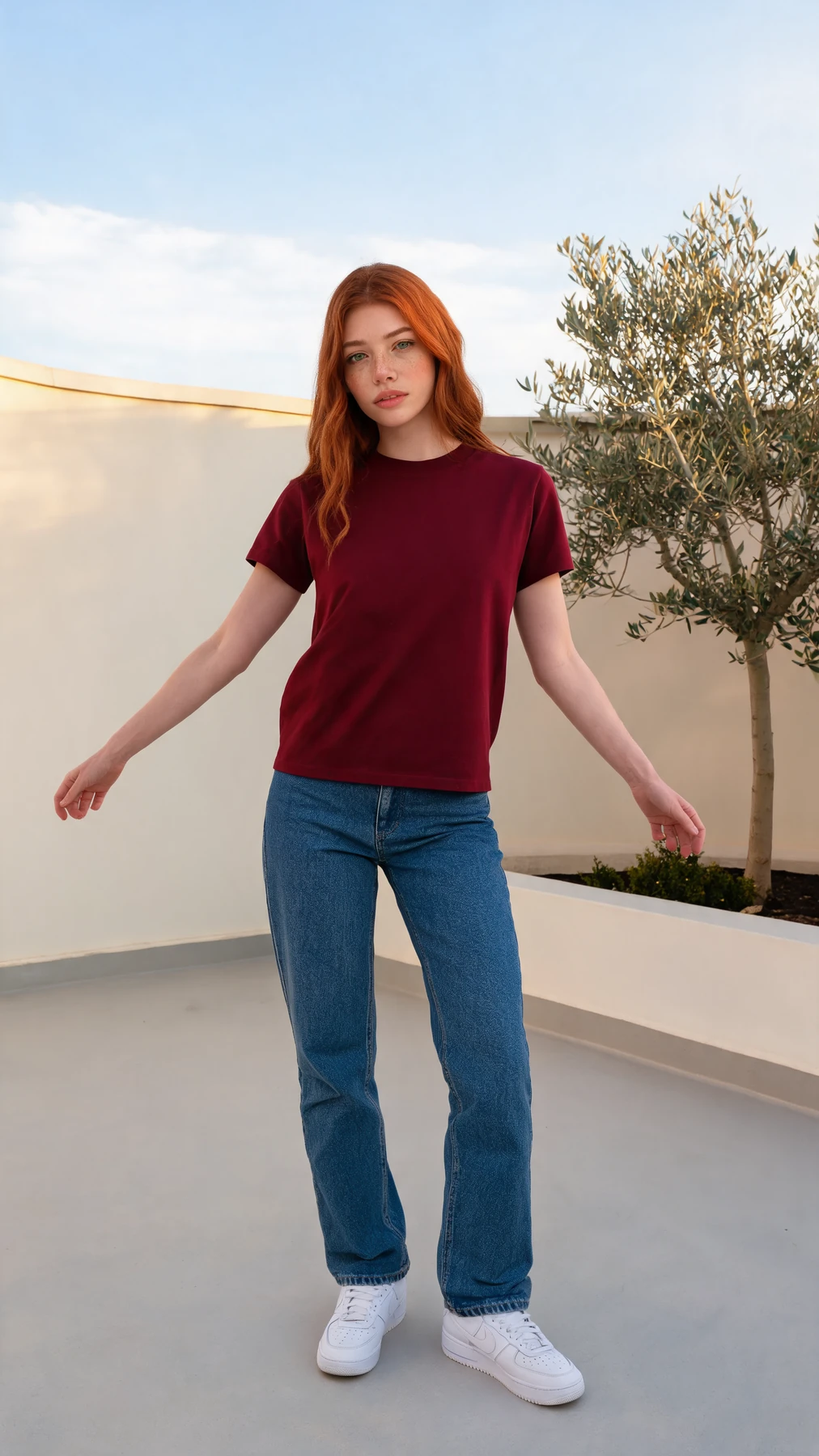
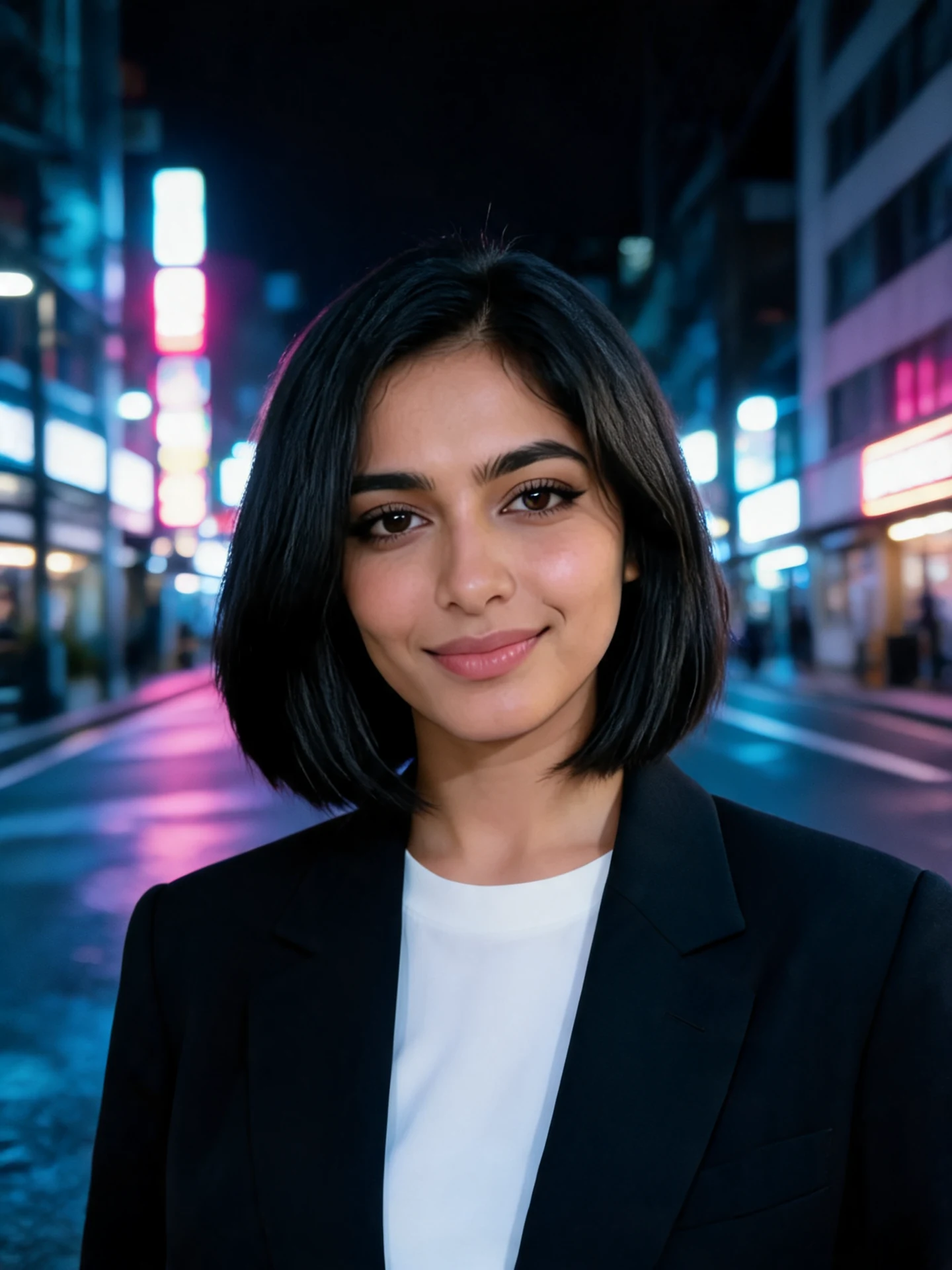
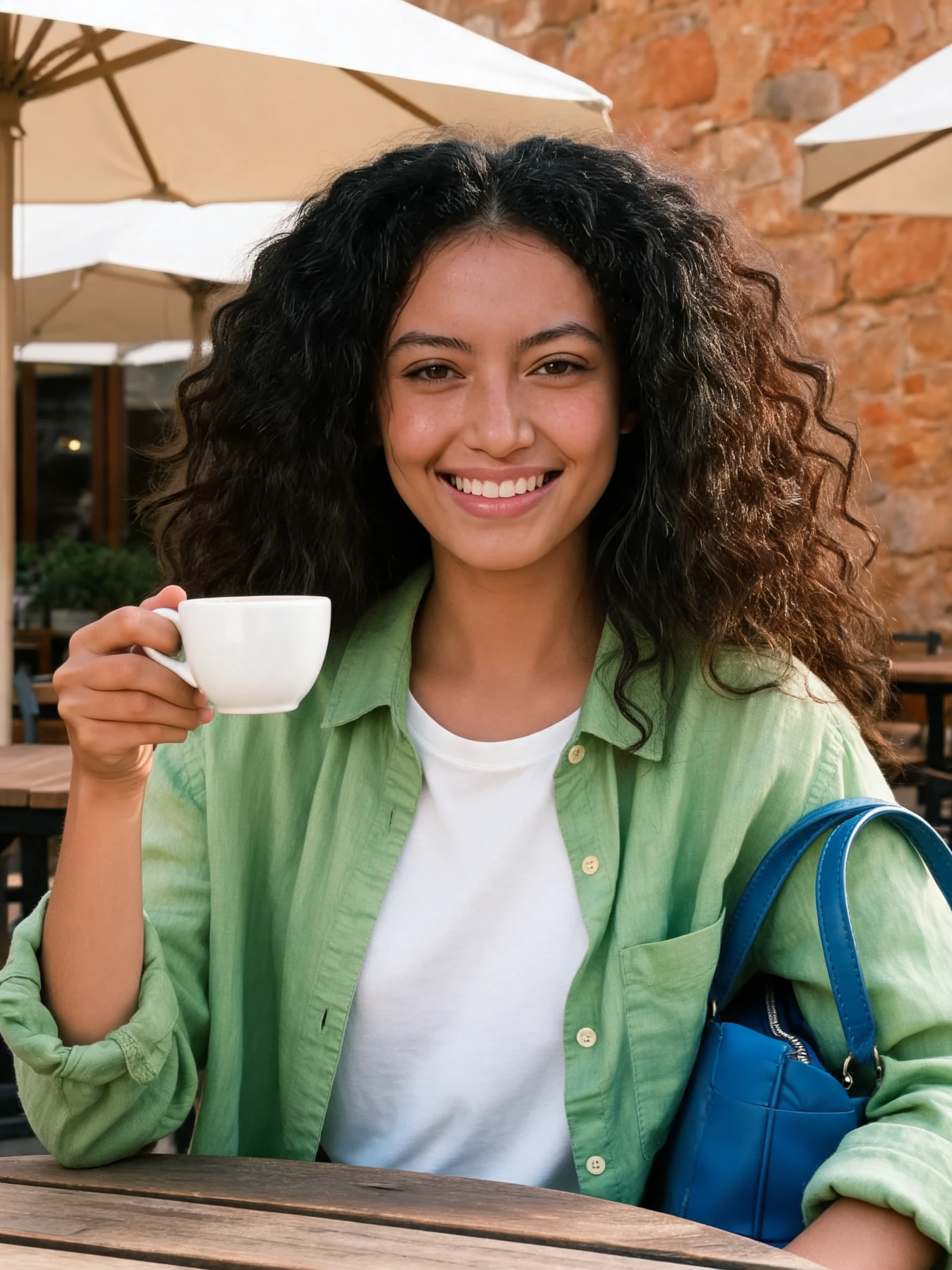
Detail preview of an existing image, not an upscale comparison.
This example could not load. Please try again.
More pixels. A closer look.
A larger image gives you more room to crop and prepare your content. Upscaling is a finishing step: it cannot guarantee a fix for an incorrect face, hand or composition.
Check the texture, not just the size.
Look closely at hair strands, fabric and clean edges. The interactive preview above lets you inspect an existing high-resolution RYLA character image. It is not a measured before-and-after upscale result.
Open in RYLAFrom your image to the final version.
Choose a Studio image
Start with a saved character image. Pick a sharp, well-composed source for the best starting point.
Open Upscale
Select Upscale in the image controls. Review the available settings and credit cost before you run it.
Inspect the result
Zoom in on the face, hair, fabric and edges. Download the finished version once you are happy with it.
Your questions, answered.
Your next image starts here.
Explore plansKeep creating
Creative tools
AI Influencer Generator
Create an original character. Build a recognizable face for your photos and videos.
AI Photo Generator
Give your character a new scene, outfit or creative direction.
AI Video Generator
Turn a starting image into a short video with movement.
Lip Sync Video
Combine a character and a voice for a talking video.
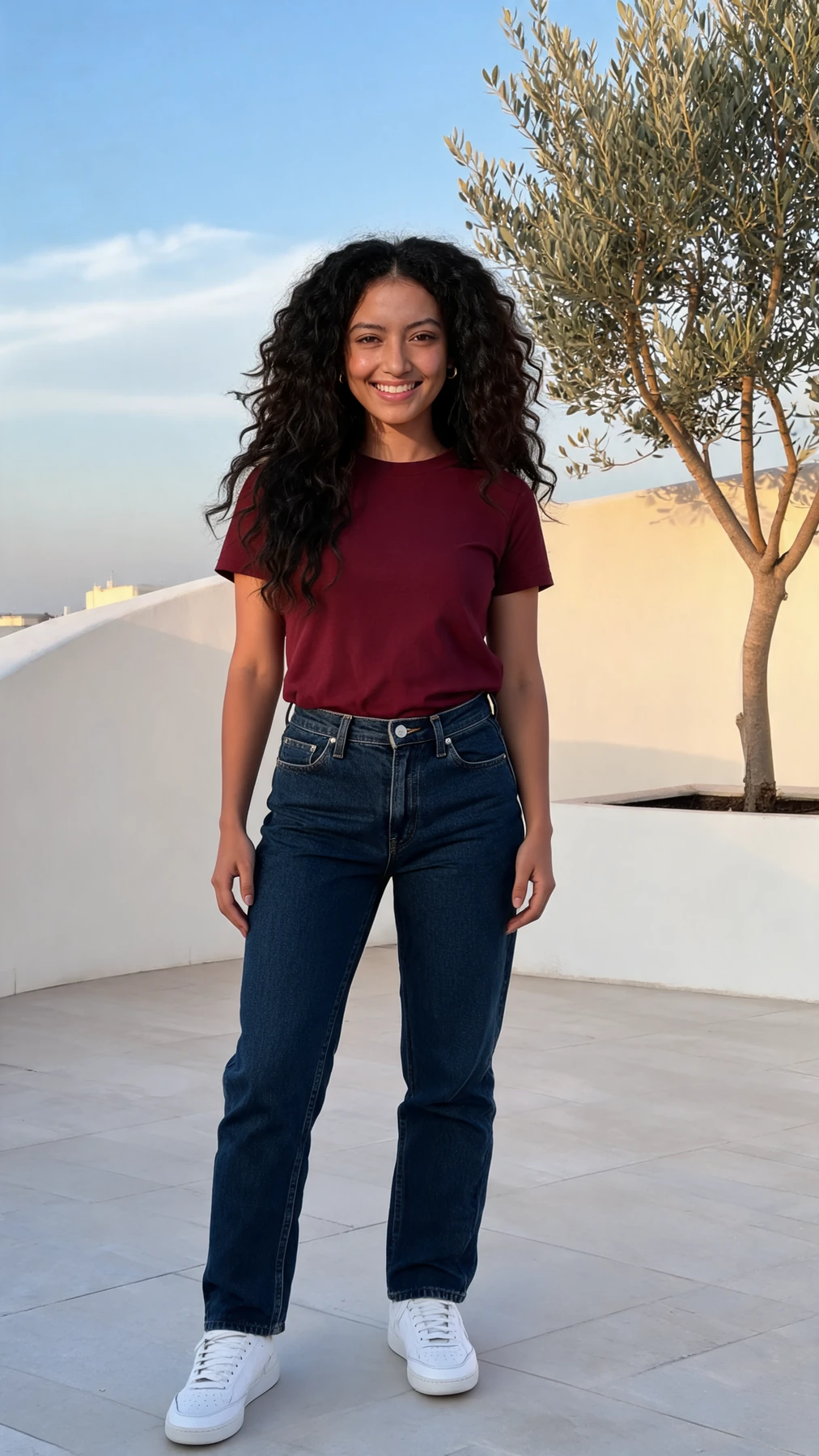
Video Face Swap
Bring your character into a reference performance.
AI Image Editor
Start with a Studio image. Describe the change you want to make.
Templates
Start with a ready-made creative direction, then make it your own.
MCP for Agents
Connect a compatible agent to RYLA’s creative tools.